Halftone Effect

Add a Halftone Effect to Any Photo

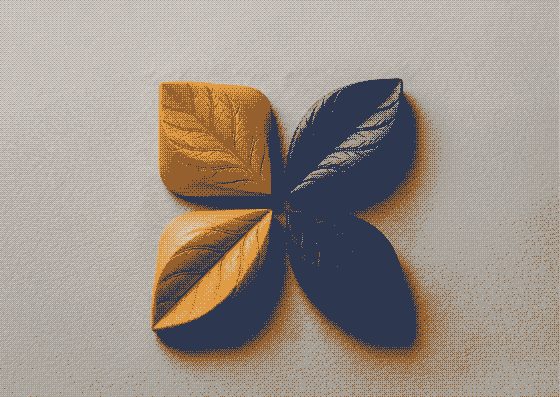
The printed-dot look of newspapers and comics: shapes that grow in the shadows and shrink in the highlights, in any two colors you like.

Image to ASCII Turn any photo into ASCII art — copy it as text or save as PNG.
Image to Pixel Art Make 8-bit pixel art from a photo with retro palettes like PICO-8 and Game Boy.
Glitch Effect RGB split, slice shifts, scanlines and static — a GPU glitch effect for any image.
Duotone Effect Map a photo onto two colors — the Spotify-style duotone look.
Pixel Sorting Glitch-art pixel sorting: melt bright or dark pixels into long streaks.
Fluted Glass Effect Reeded glass refraction: look at any photo through ribbed glass.
Shatter Effect Break a photo into flying blocks that scatter away from an intact center.
Photo to Pencil Sketch Turn a photo into a graphite pencil drawing with adjustable line weight.
Photo to Watercolor Soft watercolor washes with ink edges and paper texture from any photo.
Tilt-Shift Effect Miniature-world tilt-shift blur with a movable focus band.
Motion Blur Effect Directional motion blur for speed, panning and dynamic shots.
Film Grain Effect Analog film grain and a soft vignette for a 35mm look.
Chromatic Aberration Split red, green and blue channels for a lens-fringe or 3D-glasses look.
Light Leak Effect Warm analog light leaks and flares in any two colors.
Neon Glow Effect Trace the edges of a photo with glowing neon lines on a dark background.
Paper Cut Effect Layered paper-craft look with cut-out shapes and soft shadows.
Posterize Effect Reduce a photo to a few flat tones for a bold poster look.
Colored Pencil Drawing Turn a photo into a colored pencil drawing that keeps its colors.
Glow Effect Bloom glow: bright areas softly radiate light.
Lens Blur (Bokeh) Dreamy lens blur where bright spots bloom into bokeh.
Zoom Blur Effect Radial zoom or spin blur that rushes toward a point.
Glass Tiles Effect See a photo through hexagonal or square glass blocks with refraction.
Torn Paper Effect Rip a photo into torn paper pieces with white edges and shadows.
Hexagon Mosaic Pixelate a photo into a honeycomb of flat-colored hexagons.
Swirl Effect Twist a photo into a whirlpool around its center.
Water Ripple Effect Concentric water ripples spreading across a photo.
Bulge & Pinch Effect Magnify the center of a photo like a fisheye — or pinch it in.
Vignette Effect Darken — or tint — the corners to focus attention on the center.
Emboss Effect Raised relief look: turn a photo into an embossed grey surface.
Blur Image Blur a whole image smoothly — clean edges, any strength.
Sharpen Image Make soft photos crisper with an adjustable sharpening filter.
Demo image — drop, paste or upload yours

Halftone Effect — how it works

Turn photos into print-style halftone dots, squares or diamonds in two colors.

How halftone works

Printing presses can only put ink or no ink on paper, so shades are faked with dots: large dots close together read as dark, tiny dots as light. The generator splits your photo into a grid, measures the brightness of each cell and draws a shape whose size matches it — the same trick used in newspapers, comic books and screen printing.

Dots, squares or diamonds

Circles give the classic newsprint and pop-art look, squares a crisp digital pattern, diamonds the texture of old magazine photos. Leave the size on auto to get about 120 cells across the short side, or set it yourself — bigger cells make a bolder, more graphic image.

Any two colors

Ink and paper can be any colors: black on cream for print, red on yellow for pop art, white on blue for a blueprint feel. Two-color halftones work well as posters, social graphics and backgrounds for text.

Frequently Asked Questions

This page makes two-color halftones. For multi-color looks, open the image in Image Flow and stack halftone with gradient map, or use the Palette Dither effect with the CMYK palette.

The full resolution of your photo (up to 4096 px on the long side). Dot size scales with the image, so the download matches the preview.

No — the effect runs on a canvas in your browser.